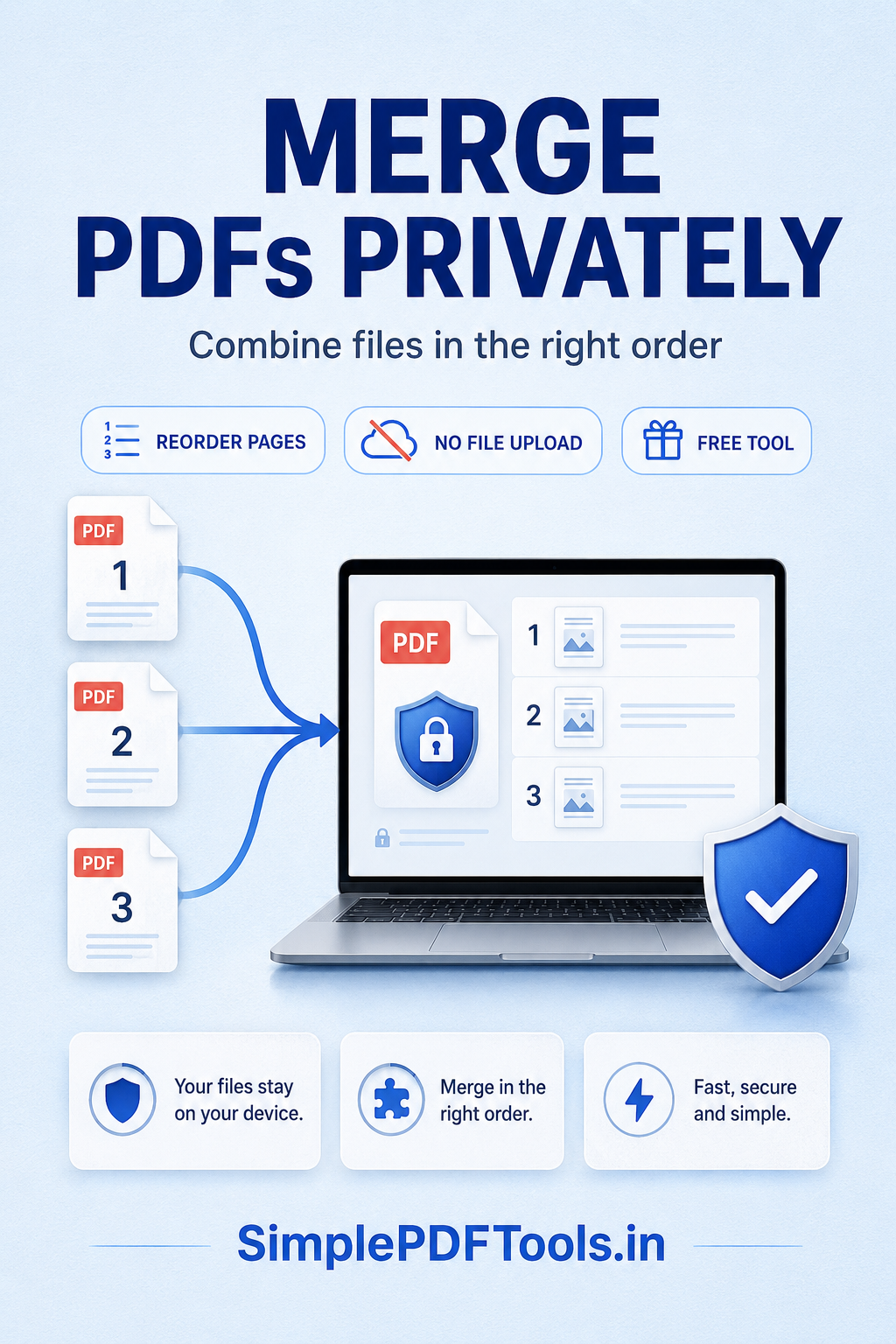
Short answer: put the PDFs in the correct order, merge them with a tool you trust, then open the final file and check page order, orientation, bookmarks, and sensitive information before you send it.
Prepare your PDF files first
Good preparation prevents most merging mistakes. Give each file a clear temporary name, remove duplicate pages, and decide the final order before you begin. For a client pack, this might be cover page, proposal, supporting documents, then appendices.
Keep a master copy.
Keep the original PDFs unchanged. Create a separate merged final copy so you can correct the order later without losing source documents.
Merge PDFs in 5 steps
Use the latest approved versions and remove files that do not belong in the combined document.
Name or arrange files in the same sequence the reader should see.
Add your PDFs and confirm that each file appears in the correct place.
Review the first, last, and transition pages between each source document.
Open the result and verify page count, page order, page rotation, and print appearance.
How to keep a merged PDF private
Merged files can contain invoices, contracts, IDs, application records, or other sensitive information. Choose a workflow that keeps you in control of your files. Before sharing the result, review the combined PDF for comments, metadata, attachments, and pages that were included by mistake.
If you need to reduce the final file size for email, use the PDF compress tool after checking your merged file: Compress PDF.
Final quality check
- Confirm the total number of pages.
- Check the first and final page of each original document.
- Check that no page is blank, sideways, or duplicated.
- Search the file title and document properties before sharing.
- Send the final PDF using a clear, neutral filename.